How to Resize and Crop Your Photo Online
Using our online photo resizer, you can easily resize, crop, compress, and format your photo or signature for online forms, exams, passport, visa, PAN card, driving licence, job applications, and more.
Steps to Use the Photo Resize & Crop Tool
- Click the Browse button and upload your photo or signature.
- Select a standard size (passport, PAN, exam format) or enter a custom size.
- Drag and resize the image inside the crop box to adjust framing.
- To maintain aspect ratio while resizing, press and hold the Shift key.
- Once the preview looks correct, click Crop. If needed, use the Reset button.
- For signatures, click Signature Scan to remove background noise or shadows.
- Select a file size (in KB) or quality level and choose JPG for best compatibility.
- Click Download to save your resized photo.
How to Convert CM to Pixels for Image Resizing
Many forms require images in exact cm or mm measurements. To convert cm to pixels, a standard DPI value is used. Most photos use 150 DPI, which equals approximately 59 pixels per centimeter.
Example Calculation
Convert a 3.5 cm × 4.5 cm passport photo:
- Width: 3.5 cm × 59 px = 207 px
- Height: 4.5 cm × 59 px = 266 px
Photo: cm → pixels calculator
Formula: pixels = cm × (dpi ÷ 2.54) — (1 inch = 2.54 cm)
How to Resize an Image to 100KB
- Upload a high-resolution image for best results.
- Select the required output dimensions.
- Crop and adjust the image in the preview box.
- Choose the 100KB option under compression settings.
- Download the optimized file.
How to Resize and Prepare a Signature Image
Resizing a digital signature correctly is important when filling government forms, school registrations, banking applications, or job exams. With our tool, you can quickly resize and adjust your signature to meet exact requirements without losing clarity.
- Upload your signature image using the Browse button.
- Select a standard signature size (like 3cm × 1cm or 140px × 60px) from the preset dropdown, or manually enter your required dimensions in cm, mm, or pixels.
- Adjust the signature inside the crop box by dragging and resizing until it fits perfectly within the boundary.
- For cleaner edges and better readability, adjust brightness, contrast to remove shadows or dark backgrounds.
- Preview the final output and select a download size or format (JPG or PNG).
- Click Download to save your resized signature.
This process ensures your signature is clear, properly sized, and ready to upload on passport applications, banking forms, PAN card forms, academic portals, and other official websites.
Standard Photo Sizes for Passport, PAN & Visa
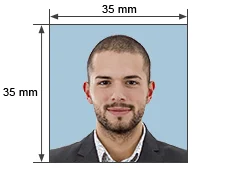
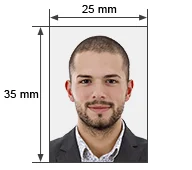
| Document Type | Required Dimensions | Background Color |
|---|---|---|
| Indian Passport | 2x2 inch or 35×45 mm | White / Off-White |
| OCI | 35×35 mm | Light Blue (White not allowed) |
| Visa (India) | 35×45 mm | White / Light Background |
| PAN Card | 25×35 mm | White |
Ensure the face is clearly visible, not tilted, with eyes open and neutral facial expression.
Supported Exams
This tool is commonly used for online applications such as:
- GATE, NEET, CAT, SSC, UPSC, Railway
- Government Job Applications
- College Admission Forms
- Banking & Competitive Exams
Resize, crop, compress, and format your image easily — without installing apps.